
A QR code for your s.id link
Create or select a short link, then use its QR code across print, presentations, displays, and in-person touchpoints.
Move people from packaging, signage, menus, and event materials to one s.id destination. Download a clear PNG, identify QR-driven visits in Link Analytics, and keep the journey flexible with the plan that fits your team.
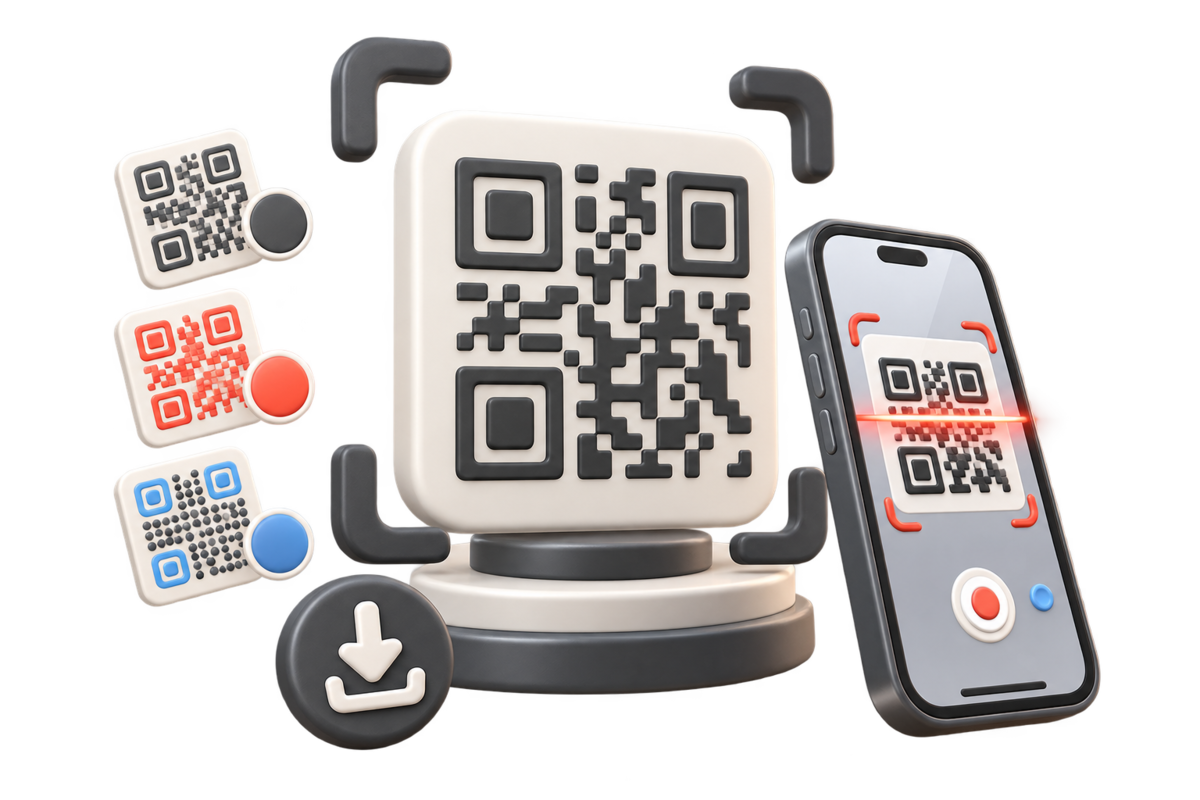
A practical QR workflow built around the links and analytics your team already manages in s.id.
Create or select a short link, then use its QR code across print, presentations, displays, and in-person touchpoints.
s.id tags visits that arrive through its QR workflow so you can review QR activity alongside the rest of your link analytics.
Paid plans can create a defined number of reusable QR templates with a brand color and uploaded logo, or hide the default s.id mark.
Save the current QR code as a high-resolution PNG for digital layouts and print production.
People can open a URL-based QR code with a compatible smartphone camera without installing a dedicated s.id scanner.
When your plan includes destination editing, you can change the URL behind the s.id link within its monthly allowance without replacing the printed QR image.
Build the destination first, generate its QR code, then test the complete visitor journey before distribution.
Create a short link or choose the existing s.id link that should receive visitors from the QR code.
Use the QR action attached to the link. Eligible paid plans can apply a saved color and logo template.
Download the PNG and scan the final layout on several phones before it goes to print or production.
Place the QR beside a clear instruction and fallback short URL, then review QR-originated activity in Link Analytics.
A standard QR code is available with your s.id link. Reusable logo and color templates, including removal of the default s.id mark, are available on eligible paid plans.
Compare QR FeaturesLink Analytics
QR-originated traffic
The s.id QR workflow marks QR-originated traffic inside Link Analytics. Available dimensions, date ranges, retention, and export access depend on the current plan.
Give each physical placement a focused destination and a reason to scan.
Send customers to setup guides, warranty forms, product details, or support content without crowding the package.
Scan to view the setup guide · s.id/get-started
Connect booth graphics, badges, handouts, and presentation slides to schedules, lead forms, or follow-up resources.
Scan for the session guide · s.id/event-guide
Point guests to a mobile-friendly menu, booking page, guest information page, or feedback form hosted at a URL you control.
Scan to view today’s menu · s.id/menu
Give prospects a direct route to your portfolio, contact page, product demo, or a focused s.id microsite.
Scan to see the portfolio · s.id/work
A scannable code is only part of the experience. Give visitors context, access, and a reliable fallback.
s.id generates a QR image for an s.id URL. Scanning it opens the same short link, microsite, form, or other URL-based destination that the link already represents.
The QR image is not a separate Wi-Fi credential, contact card, or payment rail. Its advantage is a consistent s.id link workflow: distribute one compact code, recognize QR-originated visits, and use plan-eligible link editing when a destination needs to change.
Create an account, create or select an s.id link, and open the QR action for that link. Download the PNG, place it in your layout, and test the final material before distribution.
Plan focused QR journeys for packaging, events, menus, business cards, and other physical touchpoints.
Send diners from table signs to your current mobile menu, booking page, or feedback form.
Learn MoreQR use caseConnect print and physical campaign placements to focused landing pages with measurable QR traffic.
Learn MoreQR use caseMake your survey, review page, or feedback form easier to open at the moment of experience.
Learn MoreQR use caseMove prospects from property signs and flyers to current listings, galleries, tours, or inquiry forms.
Learn MoreQR use caseConnect shelves, displays, receipts, and signs to useful product, offer, or service pages.
Learn MoreQR use caseMove readers from printed creative to a campaign page without asking them to type a long URL.
Learn MoreCreate an s.id link, download its QR code, and connect offline attention to a destination your team can manage.
Create Your QR CodeAccount required · PNG download · Paid customization available